
General settings
The General tab holds your campaign's core details and its schedule.
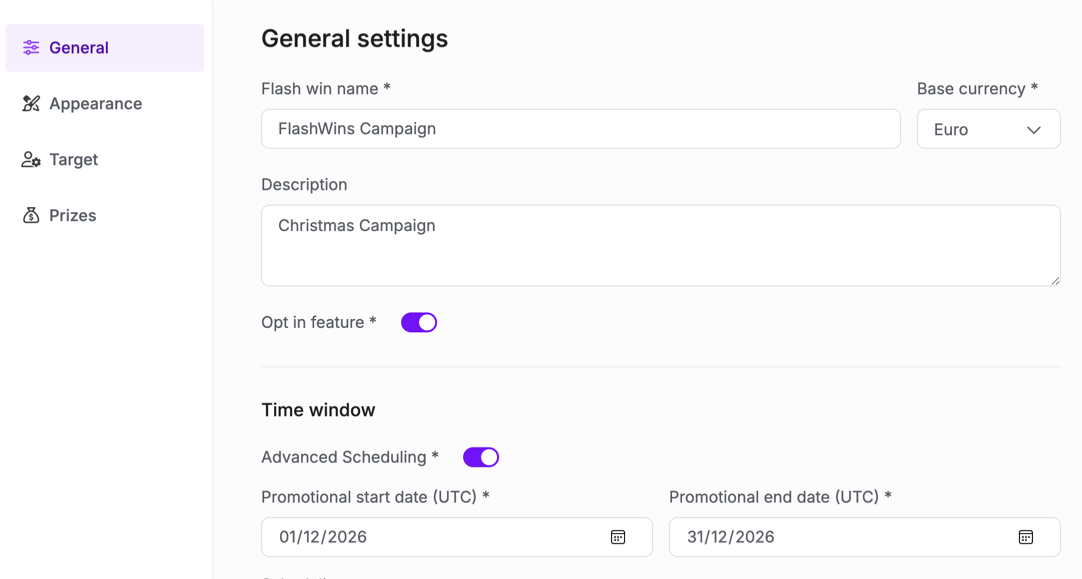
Basic settings
Setting | What it is | How to use |
|---|---|---|
FlashWins name | The name of the campaign you are setting up. | Give it a clear name so you can find it in the list. |
Base currency | The currency used for all prize amounts in this campaign. | Choose the currency used in your target region. |
Description | A short note about the campaign. | Optional. Add context for your team. |
Opt-in feature | Controls whether players must opt in before they can win. | Turn this on if players need to accept the promotion first. When it is on, a Terms link is required and an opt-in button appears in the widget. |
Time
FlashWins campaigns always run in UTC. The builder shows a timezone converter so you can preview the campaign times in a local zone. It is for reference only and does not change when the campaign runs.
Setting | What it is | How to use |
|---|---|---|
Promotional start date (UTC) | When the campaign becomes active. | Set the start date and time in UTC. |
Promotional end date (UTC) | When the campaign stops being active. | Set a date after the start date. |
Advanced Scheduling | Turns on recurring time windows inside the promotional period. | Leave it off to run continuously between the start and end. Turn it on to repeat a daily window. |
Scheduling type | How the time window repeats. | Shown when Advanced Scheduling is on. Choose Daily, Weekly, or Monthly. |
Start time and End time | The daily window the campaign is active within. | Set both times in UTC. If the end time is earlier than the start time, the window runs overnight into the next day. |
How scheduling behaves
Setting | When prizes can be won |
|---|---|
Advanced Scheduling off | Any time between the promotional start and end. |
Daily | During the time window, every day of the promotion. |
Weekly | During the time window, only on the chosen weekdays. |
Monthly | During the time window, only on the chosen dates each month. |
Note: Daily prize distribution on the Prizes tab is only available when Advanced Scheduling is on.